Best Free Design Tools in 2026
Paid design software is optional in 2026. These eight free tools cover UI design, photo editing, vectors, color, and more — with honest notes on where the free limits actually bite.
The era of needing a $600/year Adobe Creative Cloud subscription to do serious design work is over. A combination of genuinely capable free tools now covers most of what the average designer, developer, or content creator actually needs — from UI/UX wireframes to photo editing to vector illustration to color exploration. The tools below are not stripped-down demos. Most of them are the real thing, free.
This guide organizes them by job to be done. Pick the tool for the task you have, not the tool with the longest feature list.
At a glance
| Tool | What it's for | Free limits | Web or desktop |
|---|---|---|---|
| Figma | UI/UX design, prototyping, collaboration | 3 Drafts, unlimited personal files | Both |
| Photopea | Photo editing (Photoshop replacement) | Unlimited, ads in sidebar | Web only |
| GIMP | Full-featured photo editing | Fully free, no limits | Desktop (Win/Mac/Linux) |
| Inkscape | Vector illustration, SVG/PDF output | Fully free, no limits | Desktop (Win/Mac/Linux) |
| Canva | Marketing design, templates, social media | Limited templates/elements; unlimited basics | Both |
| Excalidraw | Wireframes, diagrams, hand-drawn style | Fully free; paid for team workspaces | Web only |
| Coolors.co | Color palette generation and exploration | Core tools free; export/team features paid | Web only |
| Google Fonts | Typography for web and print | Fully free, commercial use permitted | Web only |
1. Figma — UI/UX design, the free default
Figma is the de facto standard for UI and product design. It runs in the browser, syncs across devices in real time, and covers vectors, components, prototyping, and developer handoff in a single tool. For individual designers and students, the free tier is genuinely generous: 3 Draft files with full feature access, including auto-layout, components, and interactive prototypes.
- Free tier includes: 3 Drafts, unlimited personal files, full vector tools, auto-layout, components, basic prototyping, and view-only sharing links. For solo freelancers with small portfolios, the free tier never runs out.
- Collaboration: real-time multi-user editing — like Google Docs for design. Even on free, you can share a link and have someone else view or comment.
- Prototyping: interactive click-through prototypes without leaving Figma. Enough for stakeholder demos and user testing on the free plan.
- Where the free limit bites: 3 Drafts is the real constraint. If you are working on more than 3 projects simultaneously, you hit the wall. The Professional plan ($15/editor/month) removes this. Many freelancers manage by archiving old Drafts.
- FigJam: Figma’s whiteboard tool is included on paid plans. Free users get a separate FigJam free tier (3 boards) for sticky-note workshops and flowcharts.
Who should use Figma free: anyone doing UI, UX, web, or product design. There is no meaningful free competitor at this level of quality.
2. Photopea — free Photoshop in your browser
Photopea is remarkable. It is a browser-based photo editor that reads and writes PSD, AI, TIFF, and WebP files — using the actual Photoshop layer model, blend modes, adjustment layers, smart objects, and keyboard shortcuts. It is free. There is no install. Open your browser, go to photopea.com, drag in a PSD, and edit it.
- PSD compatibility: opens layered PSD files from Photoshop, saves back as PSD, and preserves layers and adjustments with high fidelity. It is not pixel-perfect on every effect, but it handles 95% of real-world PSD workflows correctly.
- No sign-up required: open the site, load a file, export. There is no account, no cloud sync, no GDPR consent wall to click through. Your files never leave your browser — processing is local.
- What it covers: photo retouching, layer compositing, masking, text, filters, curves, levels, healing brush. It is a real tool for real work.
- The catch: there is a sidebar ad and a slightly cluttered interface. The paid tier ($9/month) removes ads and adds some extras. The free version is completely functional — the ad is the price.
- When to use GIMP instead: if you need batch processing via scripting, or if you are working offline regularly, GIMP is the better desktop choice. Photopea requires a browser and an internet connection to load (though it runs offline once loaded).
3. GIMP — full desktop photo editor
GIMP (GNU Image Manipulation Program) is the open source desktop photo editor that has existed since 1996. It is free, runs on Windows, Mac, and Linux, and has no feature limits, no free tier expiration, and no account required. The learning curve is steeper than Photoshop or Photopea — the interface is unusual and some concepts are named differently — but the capability ceiling is high.
- Strengths: fully offline, scriptable (Python, Script-Fu), handles large files efficiently, supports RAW via the UFRAW plugin, strong for print-resolution work.
- Plugin ecosystem: thousands of plugins for effects, batch operations, and format support. G’MIC is a powerful filter plugin worth installing immediately.
- Weakness: single-window mode is available but the default UI is dated. No native PSD round-trip as clean as Photopea. Not the tool for quick, casual editing.
- GIMP 3.0: released in 2025 with a significantly improved GEGL-based processing pipeline, better color management, and a cleaner UI. If you last tried GIMP years ago and gave up, the current version is meaningfully better.
4. Inkscape — free vector illustration
Inkscape is the open source answer to Adobe Illustrator. It produces native SVG files, exports to PDF, EPS, and PNG, and handles node editing, path operations, typography on a path, and complex illustrations. It is not as polished as Illustrator, but it is fully capable for real work.
- SVG-native: SVG is Inkscape’s native format — which means designs export cleanly to web use without conversion steps. Print designers can export PDF directly.
- Best uses: logos, icons, infographics, diagrams, print-ready illustrations. Anything that needs to scale to any size without degrading.
- Figma vs Inkscape for vectors: if you are making vectors for a UI, Figma is the better tool — it has a design context, component reuse, and direct developer handoff. If you are making standalone illustrations for print or complex SVG files, Inkscape is the better tool. They solve different parts of the vector problem.
- Weakness: performance on complex files with hundreds of objects can slow down. The UI takes getting used to. Not browser-based — install required.
5. Canva — templates, marketing, social
Canva’s free tier is genuinely excellent for what it is designed to do: quick, template-driven design for social media posts, presentations, flyers, and marketing assets. It is not a tool for serious UI work or complex photo editing, but for the category it occupies, nothing else comes close at the free price.
- Free tier includes: 250,000+ templates, basic elements, drag-and-drop editor, social media post sizing presets, PNG/PDF export. Enough for most marketing use cases.
- Canva Pro ($14.99/month): unlocks premium templates and elements, background remover, brand kit (fonts, colors, logos), unlimited cloud storage, one-click resize across formats. Worth it for regular use; the free tier is limiting for teams.
- Who should not use Canva: professional designers doing custom brand work — Canva’s templates lead to same-looking output. It is a production tool, not a creative-from-scratch tool.
6. Excalidraw — wireframes and diagrams, zero friction
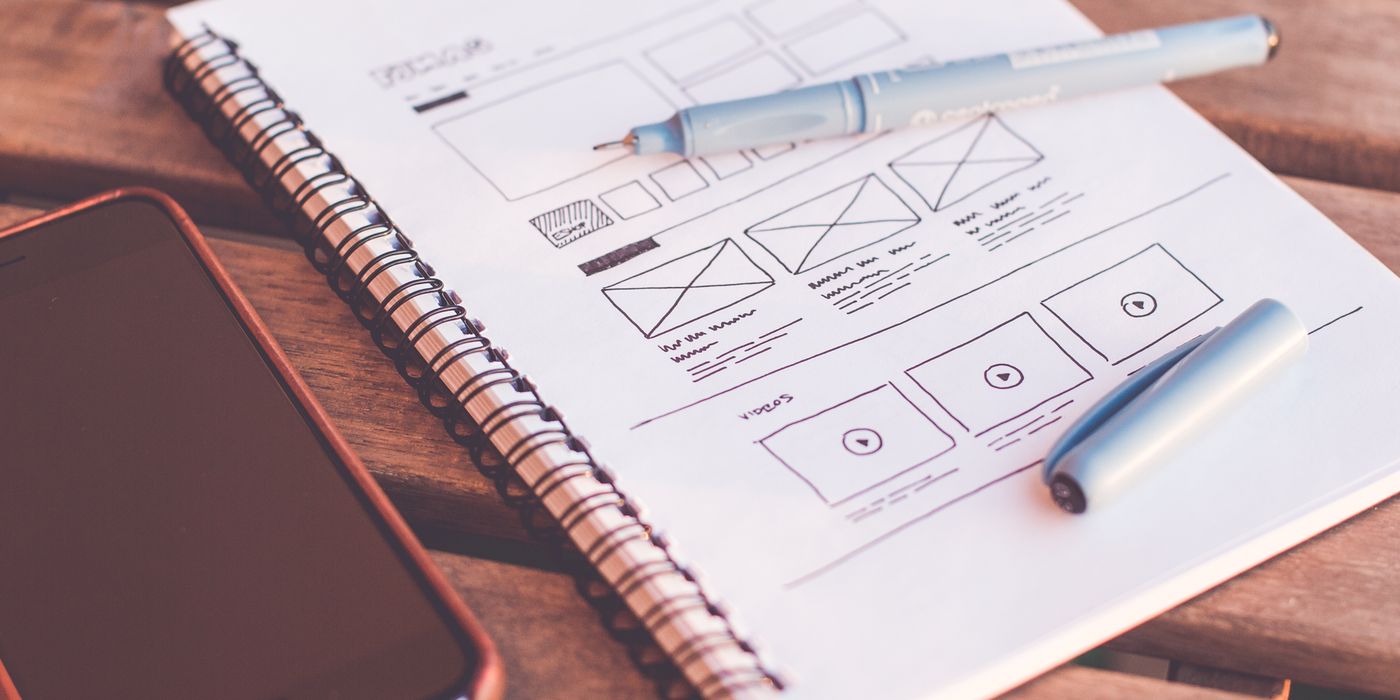
Excalidraw is a browser-based whiteboard tool that produces hand-drawn-style diagrams. No sign-up, no install — go to excalidraw.com and start drawing. It has become the default tool for quick technical diagrams, architecture sketches, and product wireframes in many engineering and product teams.
- Why the hand-drawn style matters: sketchy, informal-looking diagrams signal “this is a draft, push back on the ideas” in a way that polished Figma mockups do not. Counterintuitively, rough-looking wireframes generate more useful feedback in early product reviews.
- Real-time collaboration: share a link and collaborators join the same canvas, no account needed.
- Exports: PNG and SVG. Embed diagrams in Notion, GitHub, or Confluence.
- Excalidraw+: the paid tier ($7/month) adds persistent shared rooms, unlimited canvas, and storage. The free version is excellent for ad-hoc use.
7. Coolors.co — color palettes
Coolors is a palette generator where pressing the spacebar generates a new harmonious five-color palette, and locking individual colors keeps them while regenerating the rest. It sounds simple because it is — and it is extremely useful. The free tier covers the core workflow.
- Free features: palette generation, color exploration by hue, contrast ratio checker, palette export as image or CSS variables. More than enough for most design work.
- Paid tier: saves unlimited palettes to your account, team sharing, Illustrator/Photoshop plugin. Worth it only if you are managing palettes across a team.
8. Google Fonts — typography
Google Fonts is a library of over 1,500 font families, free to download and use commercially — in websites, apps, print, and anywhere else. It is the correct answer to “where do I get fonts for free?” and has been since about 2016.
- Web use: embed via a single CSS import. No self-hosting required, though self-hosting is also an option for privacy-conscious setups.
- Quality range: varies. Some fonts (Inter, Roboto, Playfair Display, Source Serif) are genuinely excellent. Others are low quality. The filters on fonts.google.com (sort by “Trending” or “Most popular”) surface the better options.
- Variable fonts: a growing percentage of Google Fonts are variable fonts — single files with adjustable weight and width axes. Smaller file size, more flexibility.
Who should pick which
The takeaway
You do not need Adobe Creative Cloud to do serious design work in 2026. Figma is the industry standard for UI at any price. Photopea handles 95% of what most people open Photoshop for, in a browser tab. GIMP and Inkscape are mature, capable, and completely free. Canva handles templates faster than anything else.
Start with the free tiers. The moment a specific free limit is slowing down actual work — not hypothetically, but actually — that is the signal to pay for a specific tool. Not before.
Essential free extras
Pair any design tool with Coolors.co for palette generation and Google Fonts for typography. Both are fully free and cover the two most common “where do I find this?” design questions without any cost or sign-up.