How to Set Up 2FA Properly
Two-factor auth is the single most valuable security upgrade you can make. Here is how to set it up on the accounts that matter — without accidentally locking yourself out.
Two-factor authentication (2FA) is the single highest-value security upgrade the average person can make. Turn it on for your email and your main accounts, and you have blocked about 99% of the ways strangers on the internet could realistically hack you. It takes about an hour to set up properly, once.
And it comes with a real risk: if you set it up carelessly, you can lock yourself out of your own accounts permanently. This guide covers both — how to set it up and how to not get locked out.
What 2FA actually is
A password proves you know something. 2FA proves you have something. To sign in, you need both — your password AND a second thing (a code, a tap on your phone, a physical key). This is why 2FA works: even if someone steals your password (from a leak, a phishing site, a coworker looking over your shoulder), they cannot use it without also having your second factor.
The four kinds of 2FA — from worst to best
1. SMS (text messages) — the weakest
A code sent to your phone by text. Better than no 2FA, but weak. Attackers can hijack your phone number (SIM swapping) and receive the codes themselves. Some banks and services still only offer SMS.
Use SMS 2FA if: nothing else is offered. Anything is better than password-only.
2. Authenticator apps (TOTP codes) — the everyday default
An app on your phone generates a rotating 6-digit code every 30 seconds. You type it in. This is what “set up 2FA” usually means. Works offline. Cannot be intercepted by SIM swapping.
Popular apps: Authy (with cloud sync), Google Authenticator (has cloud sync too since 2023), Microsoft Authenticator, Bitwarden (built into the password manager on the free tier), 1Password (built in, paid).
3. Push notifications — the friendliest
The service pings your phone; you tap “Approve.” Used by Duo, Microsoft Authenticator, Google’s own prompts. Fast and convenient, but vulnerable to “push fatigue” attacks where an attacker spams you with approvals hoping you tap one absentmindedly.
4. Passkeys and security keys — the strongest
Passkeys are cryptographic credentials stored on your device (usually iCloud Keychain or Google Password Manager). Sign in with Face ID / Touch ID / device unlock. Phishing-resistant. The direction the industry is moving.
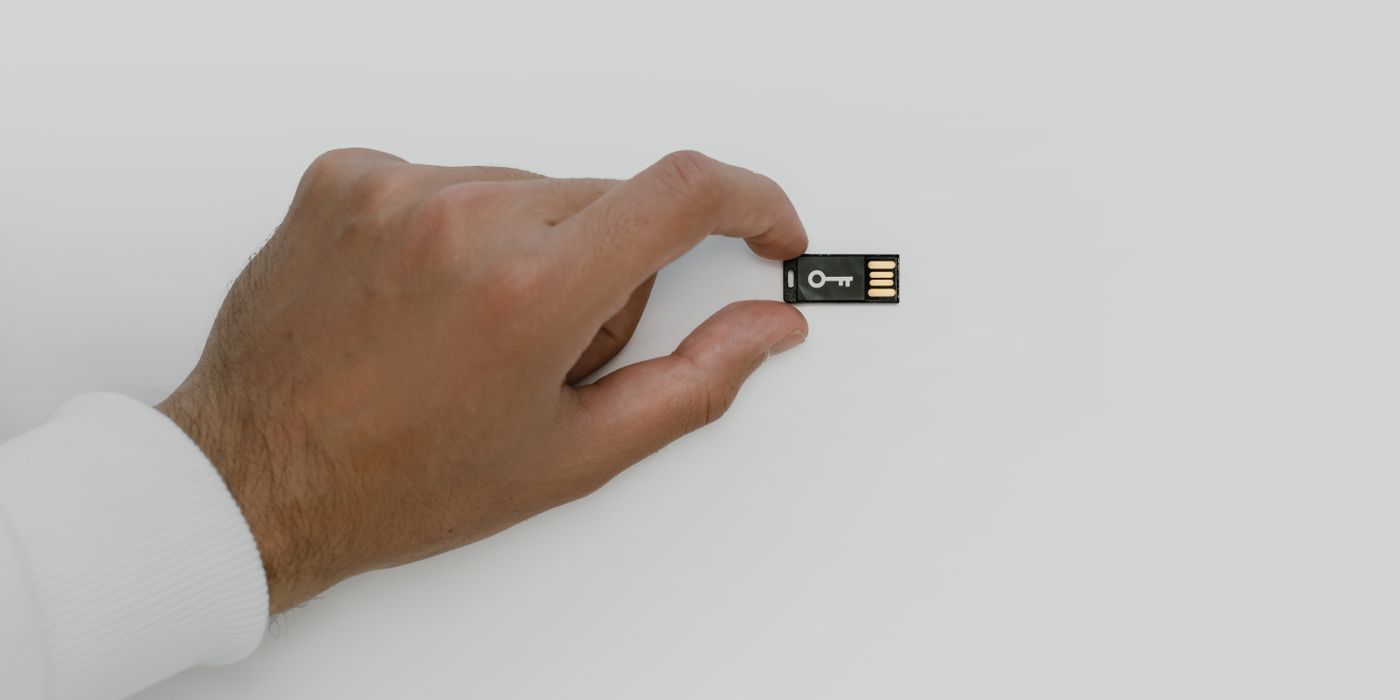
Security keys (YubiKey, Google Titan) are physical USB/NFC devices. Plug in, tap the button. Best-in-class security, immune to phishing. Cost $30-60. Once used mostly by security professionals; now supported by most major sites.
The setup that actually works
Step 1: turn on 2FA on your email FIRST
Your email account is the master key to your digital life. Password resets for every other service go to your email. If someone gets your email, they own you. So protect it first, before anything else.
Gmail: myaccount.google.com → Security → 2-Step Verification. Turn it on. Add both an authenticator app AND a backup phone number.
Outlook / Hotmail: account.microsoft.com → Security → Advanced security options → Two-step verification.
Apple: appleid.apple.com → Sign-In and Security → Two-Factor Authentication (called “Two-Factor Authentication” specifically, not Apple’s older “Two-Step Verification” — enable the new one).
Step 2: save the backup codes IMMEDIATELY
When you enable 2FA, the service almost always shows you a set of one-time backup codes (usually 8-10 codes). These are your escape hatch if you lose your phone.
- Save them in your password manager. Every good password manager has a “Notes” field for exactly this.
- OR print them out and put them in a safe / drawer.
- OR both.
- Do not store them only on your phone. If you lose your phone, you have lost the backup codes too. That is the whole reason they exist.
Step 3: turn on 2FA for these accounts, in this order
- Email (all of them, primary first)
- Your password manager itself
- Your bank(s) and any financial account
- Any cloud storage where you keep important files
- Apple ID / Google Account / Microsoft Account (the platform accounts your device syncs with)
- Social media accounts (especially any that could be used to impersonate you)
- Amazon, PayPal, and any account with saved payment methods
- Work accounts (if not already forced by your employer)
Anything past this list is optional — nice to have, but not urgent.
Step 4: pick an authenticator app that syncs
The moment you use an authenticator that does NOT sync to the cloud, you have created a single point of failure (your phone). When you break, lose, or upgrade your phone, restoring your 2FA codes becomes an ordeal.
The good options:
- Authy — cloud sync across devices, historically the recommended option.
- Google Authenticator — added cloud sync in 2023, now a reasonable pick.
- Your password manager (Bitwarden, 1Password, Proton Pass) — stores TOTP codes alongside passwords. Convenient but creates a single point of failure if the vault is breached.
Purists’ concern: keeping TOTP codes in the same place as passwords weakens the “two factors” concept. If someone gets your password vault, they get both. This is a real concern for high-security use cases. For most people, the convenience wins.
The mistakes that lock people out
Losing the phone with all their 2FA codes and no backup
The classic disaster. Recovery is painful — the service’s support team needs to verify who you are, which can take days and involve mailing them documents. Some services (email providers, especially) offer no recovery at all if you cannot prove ownership. Prevention: cloud-syncing authenticator + saved backup codes.
Turning on SMS 2FA for a phone number they later gave up
People move countries, change carriers, and forget to update every account. Two years later, the account requires an SMS to a phone number they no longer own. Prevention: use an authenticator app instead, or keep your recovery number current.
Setting up 2FA on a work account, then losing job access
Enterprise 2FA is often locked to your work device or work account. When you leave, you lose access to the 2FA method, which can lock you out of shared/personal accounts you set up through work. Prevention: use personal 2FA methods for personal accounts, even at work.
Not testing the second-factor before saving it as primary
Setting up a new 2FA method should always end with logging out, then logging back in using the new method. Verify it works before you rely on it.
Passkeys — should you switch?
Passkeys are the direction the industry is moving. Google, Apple, Microsoft, and every major site now supports them. They are phishing-resistant, do not require typing codes, and are backed up automatically via your Apple/Google account.
The catch: passkeys tied to a single platform (iCloud Keychain, Google Password Manager) make you dependent on that platform. If your Apple ID or Google account is ever locked, you lose your passkeys along with everything else. Cross-platform passkey managers (1Password, Bitwarden) mitigate this.
Recommendation: enable passkeys where offered, keep an authenticator app or backup codes as a fallback. Do not delete your 2FA app because you enabled passkeys.
Physical security keys — worth it?
A YubiKey ($30-60) is the strongest 2FA available for consumers. Immune to phishing. Immune to malware. Immune to SIM swapping. If you are a journalist, activist, high-net-worth person, or anyone who might be individually targeted, a security key is worth the money.
For most people, an authenticator app is enough. But security keys are worth knowing about — they exist for the situations where the risk actually warrants it.
What to do if you lose access to your 2FA
- Try your backup codes first. If you saved them, they are the fastest path back in.
- Try any secondary 2FA method (some accounts allow multiple — a backup phone, a second authenticator, etc.).
- Contact the service’s support with account recovery. Expect days or weeks. Bring identification.
- If none of that works: some accounts are unrecoverable. This is why the backup codes matter.
The takeaway
2FA is boring, essential, and takes about an hour to do properly for all the accounts that matter. Do it this weekend. Save the backup codes. Verify each one works. Then forget about it — the daily inconvenience is small, and the protection is enormous.
The people who tell you they got hacked did not have 2FA on. Do not join them.